Home Features About Downloads Donations Support Forum Contact
Online Help
Online Help
<< Back
Add a new web browser group
A web browser group let's you open the same search in different web browsers at the same time. You can also create a group of programs to run at the same time.


Step 1
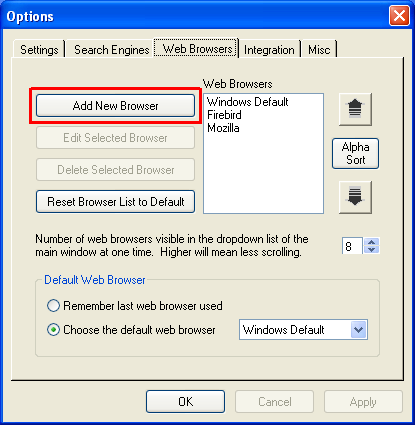
Go to the Web Browsers tab in the Options window and click on Add New Browser.


Step 2
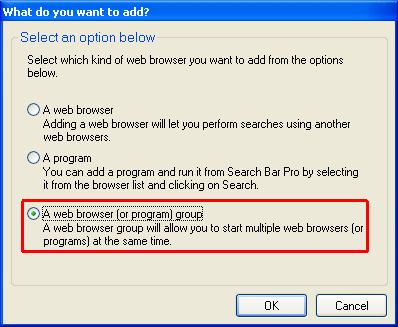
Choose "A web browser (or program) group" and click OK.


Step 3
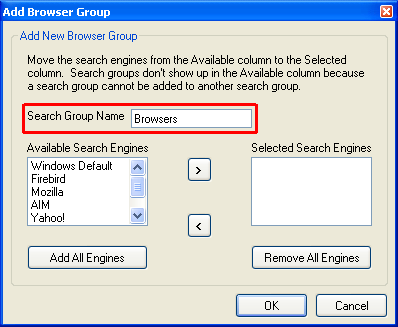
Type the name of the browser group in the Browser Group Name textbox.


Step 4
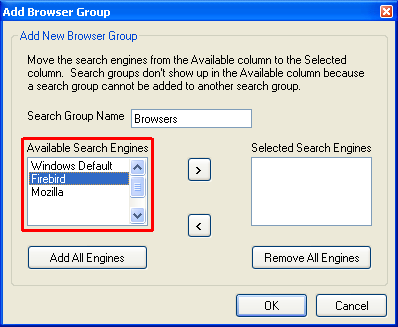
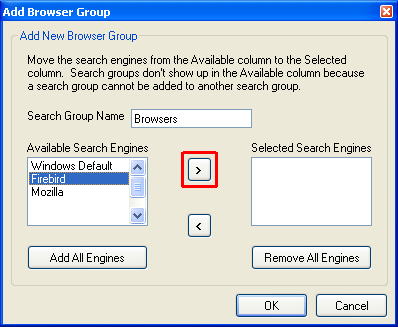
Select a web browser in the Available Web Browsers list that you want to add to the browser group.


Step 5
Then click the button highlighted in the picture above. This will move the web browser from the Available Web Browsers list to the Selected Web Browsers list.


Repeat the previous 2 steps for each web browser you want to add to the search group.


Step 6
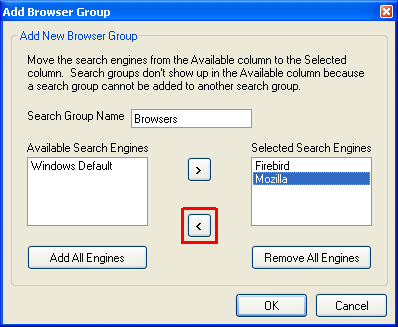
To remove a web browser from the browser group, select the web browser in the Selected Web Browsers list. Then click the button highlighted in the picture above. This will move the web browser from the Selected Web Browserslist to the Available Web Browsers list.


Step 7
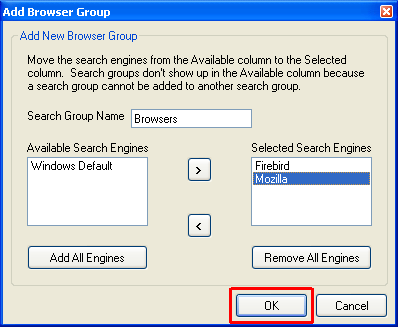
Click OK when you are finished and the browser group will be added to the Web Browser list.


 Last Update: 8/15/2003 
This website is best viewed using Internet Explorer 6.0, Netscape 6.2+, or Mozilla 1.0+ at a resolution of at least 800x600.

9